
Viewing Maps
Use Allmaps Viewer to explore georeferenced maps in your browser, or add them to your own website with an Allmaps plugin for MapLibre, Leaflet, or OpenLayers.
Both use Georeference Annotations to position the original IIIF images on a modern basemap. The images are warped in your browser as you zoom and pan.
Using Allmaps Viewer
Allmaps Viewer lets you compare historical maps with a modern basemap and inspect their original IIIF images. It fetches IIIF image tiles directly from the institutions that host them and uses WebGL to warp and display them in your browser.
Try it with this map of Saigon from the Bibliothèque nationale de France, also used in the Georeference Annotations guide.
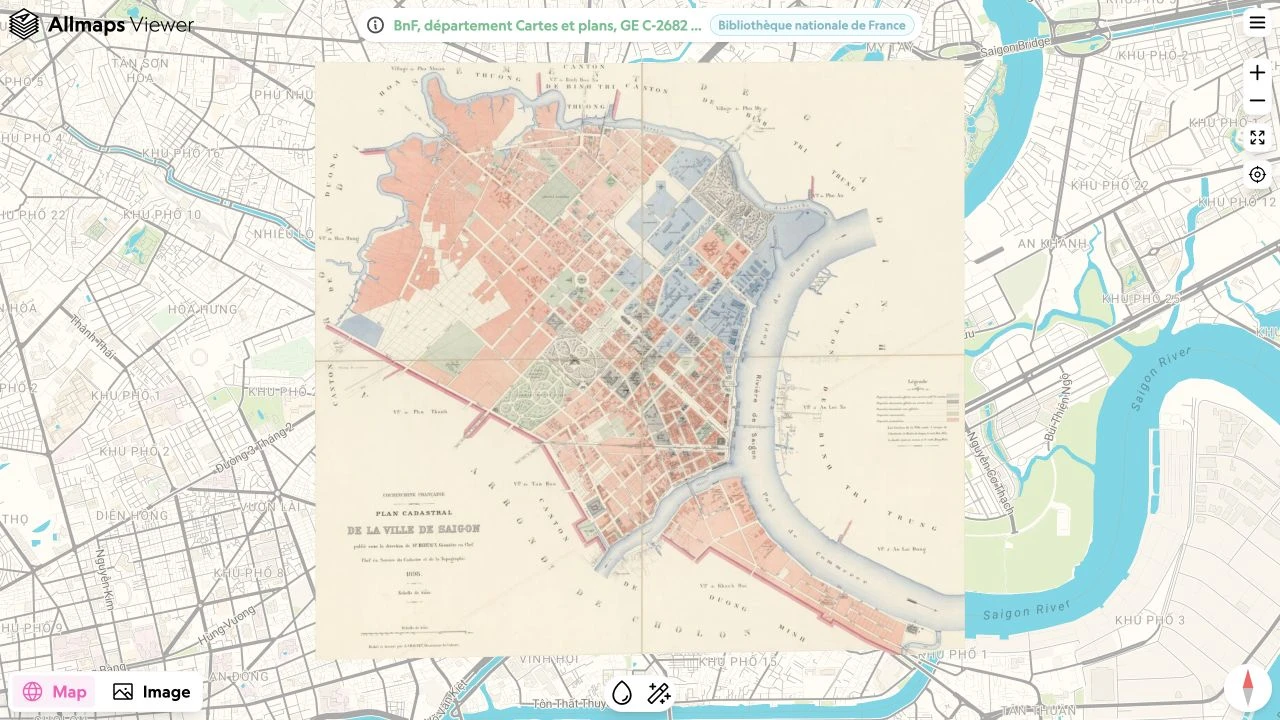
Open a map
- Open Allmaps Viewer.
- Paste the URL of a Georeference Annotation, Annotation Page, or IIIF Manifest into the input field and press Enter.
- Allmaps Viewer loads the georeferenced maps and zooms to their location.
When you open a IIIF Manifest, Allmaps Viewer loads its embedded Georeference Annotations and looks for associated maps in the Allmaps database.
You can also paste the complete JSON contents of an annotation or Manifest, or drag and drop a JSON file onto the input field.
If a map has not been georeferenced yet, follow the georeferencing guide to get started in Allmaps Editor.
Compare the map and original image
Use Map to see the historical map warped into its geographic position over a modern basemap. Zoom and pan to explore how streets, buildings, and other features have changed.
Adjust the opacity to make the historical map more transparent and compare it with the basemap underneath.
Use Image to inspect the original IIIF image without warping, including margins, legends, and other details outside the map mask. Switch back to Map to see it in its geographic context.
View multiple maps
An Annotation Page or IIIF Manifest can contain georeferencing data for several maps. Allmaps Viewer displays them together in Map view, so you can explore maps made up of multiple sheets or compare maps covering the same area.
Use the previous and next map buttons to select a map. Switch to Image to inspect the original IIIF image of the selected map.
You can also use [ and ] to select the previous or next map.
Share a map
Copy the Allmaps Viewer URL from your browser’s address bar to share the maps you have opened.
When sharing from Allmaps Editor, open the Export panel and choose which maps to share. Then choose how the link should handle future edits:
- Latest version creates a link that uses the latest georeferencing data. Anyone opening or reloading the link sees changes made in Allmaps Editor.
- Current version creates a link fixed to the georeferencing data as it is now. Later edits do not change what the link displays.
Copy the View in Allmaps Viewer link to share it. Current version is available when sharing a single map or the maps on one image. When sharing all images in a Manifest or Collection, links use the latest version.
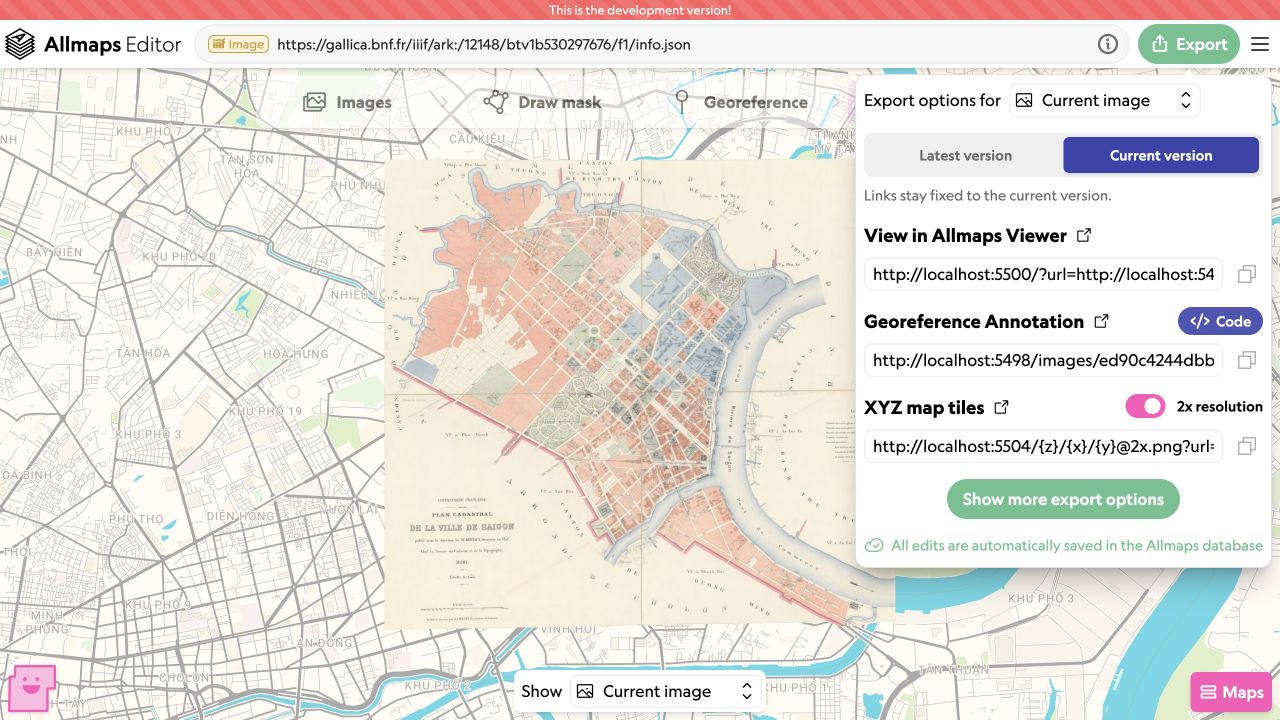
Versioned links preserve the georeferencing data, including ground control points and masks. The original IIIF images are still loaded from the institution that hosts them. See Versions and shared edits for an example of a versioned annotation URL.
On your own website
Use an Allmaps plugin to add georeferenced maps to your own website. Plugins are available for MapLibre GL JS, Leaflet, and OpenLayers. Choose the plugin for the mapping library your website uses.
| Mapping library | Package | Documentation |
|---|---|---|
| MapLibre GL JS | @allmaps/maplibre |
MapLibre plugin |
| Leaflet | @allmaps/leaflet |
Leaflet plugin |
| OpenLayers | @allmaps/openlayers |
OpenLayers plugin |
Like Allmaps Viewer, the plugins fetch original IIIF images directly from the institutions that host them and warp them in the browser. Georeference Annotations describe how to position each map over your basemap.
Try the plugins
Each plugin provides a WarpedMapLayer TypeScript class. Add this layer to
your web map, then load a Georeference Annotation or Annotation Page from a
URL or its JSON contents. A single layer can display multiple georeferenced
maps.
Try the plugins below. Switch between MapLibre, Leaflet, and OpenLayers, choose an example map, or enter your own annotation URL. Zoom and pan to explore the map, and adjust its opacity or transformation. Your settings are preserved when switching libraries.
The code and installation command update to match your choices. Copy them to use the selected plugin on your own website.
There are several ways to initialize the map and set its starting position and zoom level. Use Initial view to try these approaches and compare the code they require:
- Fit after loading: load the annotation, then zoom to the map’s extent. This is the simplest approach and a good starting point. The map’s position changes once the annotation has loaded.
- Known bounds: create the map with a predefined geographic extent, then load the annotation. The map starts in the right place, but you need to know the bounds beforehand and update them if you display different maps.
- WarpedMapList: load the annotation and calculate its extent before creating the map and layer. This gives you the right initial view without hardcoding bounds or zooming after loading. It’s the most flexible approach, but requires a little more code and delays creating the map until the annotation has loaded.
By default, each map uses the transformation specified in its annotation.

import { Map, setWorkerUrl } from 'maplibre-gl'
import { WarpedMapLayer } from '@allmaps/maplibre'
import 'maplibre-gl/dist/maplibre-gl.css'
import workerUrl from 'maplibre-gl/dist/maplibre-gl-worker.mjs?worker&url'

setWorkerUrl(workerUrl)

const map = new Map({
  container: 'map',
  style: 'https://basemaps.cartocdn.com/gl/voyager-gl-style/style.json',
  maxPitch: 0
})

const warpedMapLayer = new WarpedMapLayer()

const annotationUrl =
  'https://annotations.allmaps.org/maps/1bfb1eb4198e7240@c83337fa4b8051c9'

map.on('load', async () => {
  map.addLayer(warpedMapLayer)
  await warpedMapLayer.addGeoreferenceAnnotationByUrl(annotationUrl)

  const bounds = warpedMapLayer.getBounds()
  if (bounds) map.fitBounds(bounds, { padding: 30 })
})
Add a map container to your page:
<div id="map" style="height: 400px"></div>Install the packages:
pnpm add maplibre-gl @allmaps/maplibreThe example uses a bundler such as Vite.
For installation instructions and more options, see the MapLibre, Leaflet, or OpenLayers plugin documentation.